
We recently added support for Apple Foundation Models to SuperQode, so you can use the model built into Apple Intelligence for chat and small edits on your Mac, with no API key and no inference server. (Local AI on macOS with SuperQode and Apple Foundation Models) The feedback we kept hearing was a question: how far can an on-device model go with real coding tasks? Could it fix a failing check, not just suggest one?
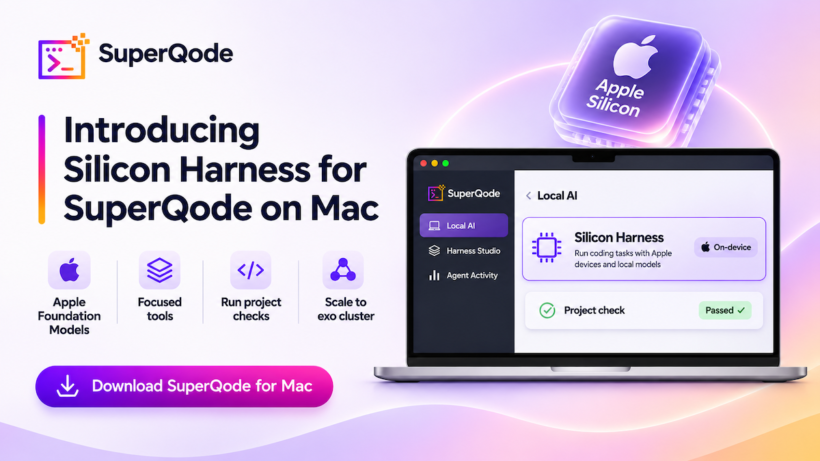
That question led us to build a harness dedicated to Apple Foundation Models and the hardware they run on. Silicon Harness gives a small local model a few focused tools, runs your project’s check after every turn, and treats Apple Silicon as one connected system. Start with Apple’s on-device model, run a cached model with Swift MLX, and when a task needs more, send the work to a bigger model on an Exo cluster that links your Macs together. Throughout, the outcome comes from your project’s check, not from the model’s own report.
Silicon Harness is available in the SuperQode public beta for Apple Silicon Macs. Download SuperQode for Mac · Read the macOS beta notes
Watch the Demo
A Small, Editable Coding Harness
On a Mac with macOS 26 or later and Apple Intelligence ready, open a project in SuperQode and choose Local AI → Start → Use Silicon Harness on the Apple on-device model card. Silicon starts with four tools: read, search, edit and write. It can search for relevant code, read specific line ranges, apply targeted edits and create files. The Changes view and checkpoints let you inspect the patch and undo it if needed. Silicon Harness guide
The Apple route uses the context capacity reported by macOS 26.4 or later, falls back to 4,096 tokens on older versions, and shows the source of that limit. If a request exceeds its budget, SuperQode surfaces the error so you can shorten the history or start a new thread. Apple requests also get a preflight check for the Foundation Models five-tool limit, including any MCP tools exposed to the model.
Bring Your Project’s Own Harness
Create a project harness in Harness Studio, or add a harness.yaml that inherits from silicon, to change the prompt, the available tools or the post-turn checks. SuperQode lists repository harnesses first under This project in the harness chooser, marked Based on Silicon Harness, and offers them in the Harness: menu on the Apple card. To change harness mid-conversation, choose Switch harness…next to the composer. You return to the same conversation, and the change applies from your next message. Compare runs Silicon and other configurations against the same model and repository suite, so you can see how the harness affects the outcome. Use a project harness
Run Verification After the Edit
Configured checks run after the coding turn, outside the model’s tool budget. You can run a short verification script, a test suite or a project-specific command, and its result appears alongside the coding response. Set fail_on_error: true if a failing check should fail the run.
name: project-silicon
inherits: silicon
checks:
  enabled: true
  fail_on_error: true
  custom_steps:
    - name: Verify the fix
      command: python3 verify.py
      timeout: 60
Checks use SuperQode’s local OS sandbox by default, with a reduced environment and network access denied. On macOS 26 or later, individual Linux-compatible checks can run in Apple Container. List the exact project files the check needs and select a locally cached ARM64 image pinned by digest. SuperQode copies those files into a disposable workspace, rejects symlinks and discards guest changes. The guest uses a read-only root filesystem with no network access beyond loopback. Keep checks that need macOS or Xcode on the host sandbox. Apple Container verification setup
Optional MCP and Monty Code Mode
MCP is off by default in Silicon. In a derived harness, enable it explicitly and allowlist the servers and tools you want to expose. The model discovers a capability through search and invokes it through execute. SuperQode validates the arguments against the server’s schema and applies the project’s permission rules to each call.
The experimental Monty Code Mode keeps those same two interfaces. execute accepts a short Python snippet with at most one governed MCP call through tool_call(...), run in Monty, a sandboxed Python interpreter. The Mac app bundles Monty 1.x, and standalone Python installations can add it through superqode[monty]. Silicon MCP configuration
You don’t have to edit YAML by hand for any of this. In Harness Studio, load a Silicon-based harness and choose Silicon options…. The sheet shows the Apple tool budget, turns on Use MCP servers with a per-tool allowlist, unlocks Monty Code Mode once MCP is on, and sets checks to run in Apple Container. Preview changes shows the YAML diff before Apply to draft, so the harness file stays the source of truth. Silicon options in Harness Studio
Run a Cached Model with Swift MLX
On Apple Silicon with macOS 27 or later, open Local AI → Start → Swift MLX. Use a compatible cached Qwen3 text checkpoint or review the starter download, then choose Use for chat or Use with Silicon Harness. Cached models can also be used in Compare, which records the checkpoint revision used for the run.
The bundled Swift helper loads the tokenizer and weights from disk and talks to SuperQode over a private stdio protocol. Apple’s MLX Swift LM performs inference, and Hugging Face’s Swift Transformerssupplies tokenization. The helper streams text and proposes tool calls, and SuperQode validates those calls, executes approved tools and returns the results to the model. Once the checkpoint is cached, inference runs from local files with no Python inference server or model server. SuperQode Swift MLX guide
The Python MLX server remains a separate option. Install Python MLX sets up an isolated environment running mlx-lm 0.32.2 over loopback, and vision-language tooling is available through the separate mlx-vlm extra. MLX installation and optional extras
Connect Your Macs with Exo
Exo connects devices on your network into one cluster and runs model inference across them (Exo on GitHub). In SuperQode, open Local AI → Start → Set up exo cluster and save the prefilled http://127.0.0.1:52415/v1 endpoint or your own address. Check server & models reads Exo’s cluster state and shows each node with its name, chip, and installed and available memory. Models on your cluster lists what Exo actually has, each marked Running, Downloaded or Downloading, with its size, context limit and the nodes that hold it. Start loads a downloaded model through Exo’s own placement, as a job you can stop. If cluster state can’t be read, the app says so instead of listing Exo’s whole catalogue. SuperQode Exo setup
You can chat directly with a running model. For coding, pick a harness and run the read-only Run tool check first. It checks the shape of generated tool calls using fixture data. Compatible models can also be used in Compare.
Handing off is a separate, reviewed action. From a finished coding turn under any harness, open Send to… next to Switch harness… or in the turn’s run header, and choose your Exo profile. SuperQode prepares an editable preview with the objective, a response excerpt, the patch, a model picker and the harness the new run will use. If the turn’s harness can run on a local model, it is kept, so a project harness keeps its checks. Send starts a new run in the same project with permission prompts on. Inference runs on your Exo cluster, while SuperQode keeps tool permissions and repository changes on your Mac. Exo is the first target in this menu, and the design leaves room for more. We have tested the handoff with Exo running on a single Mac. Multi-Mac performance has not been measured.
Managed Runtimes for Supported ACP Agents
For supported bundled Agent Client Protocol agents, SuperQode can provision Node.js, or a Python build distributed by Astral through uv. Manage installation lets you choose a supported runtime version for the project. Agent packages stay isolated per project, a failed reinstall leaves the previous working installation available, and runtime PATH changes are scoped to the agent launcher. SuperQode macOS setup guide
Try the Demo Project
The SuperQode Silicon demo project is a tiny Python repository with a one-line bug in add() and a verify.py check that fails until it’s fixed. In the demo video, Apple’s on-device model fixes it under the built-in Silicon Harness. We then switch to the repository’s own harness without leaving the conversation, turn on MCP and Monty Code Mode from the Silicon options sheet, and send the finished turn to Qwen3.6 35B running on Exo, keeping the same harness and the same check. Clone it, run ./setup.sh, and follow the README to try every step yourself.
Try It on One Small Fix
Open a project in SuperQode, choose Local AI → Start, and begin with a change you can verify in one command. Review the diff alongside the check output. When a task calls for a different model, try Swift MLX on the same Mac or send the turn to your Exo cluster.
The app supports macOS 14 or later on Apple Silicon, with the feature-specific requirements above. Download for Mac · Python package on PyPI · Source on GitHub