
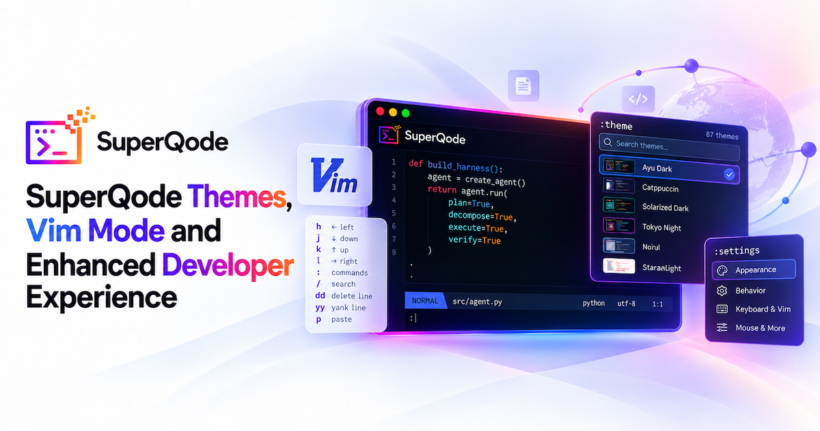
Recently, there is a lot of talk around harnesses and self-improving software. SuperQode was not designed initially for developer experience, and every coding task it was harness layer that can be used by agent to build the harnesses on demand and use existing harnesses or build self- improving continual harnesses. However, in recent weeks, we spend some time looking at the industry that coding agents are getting popular and people still wanted to do the coding either via terminal use interface or some other enterprises like web mobile or similar. In last few weeks, SuperQode Developers now spend long stretches of the working day inside a coding agent’s terminal interface. They write requests there, follow the agent as it reads and edits files, decide whether a command should run, review diffs, and return to the same session hours later. Over a full day, readability, colour support, keyboard habits, and a stable sense of which screen is in front of you become part of whether a tool is comfortable enough to keep open.
SuperQode is built around a practical idea: developers should be able to choose, inspect, and control the harness around their coding agent, whether that is the native SuperQode harness, an existing coding agent, a local model, or a provider account they already use. In our earlier post on the polished TUI, WorkOrders and Herdr, we described treating the TUI as a daily coding surface. The latest releases continue that work with a searchable gallery of 87 theme choices, live previews of your real workspace, a visual palette editor, centralized appearance settings, and more consistent keyboard, mouse, and Vim navigation. These changes make it easier to shape the terminal around your working habits while keeping your project and coding session in view.
Theme choices, previewed in your workspace
Type :theme at the prompt to open the searchable gallery. A fresh installation offers 87 distinct choices, combining seven original dark palettes, a native light palette, the terminal-derived system palette, auto mode, four MIT-licensed community palettes, four SuperQode light palettes, and an offline catalog of 71 palettes from Awesome Pi Themes 1.2.19. Two community palettes are already bundled and counted once. All brings installed palettes and the catalog together, Installed narrows the list to themes ready to use, and Light and Dark filter by appearance. The Awesome Pi snapshot contains dark palettes; bundled light choices include Ayu Light, Paper Light, Solar Dawn, Nordic Snow, and Sakura Light. You can search by name or collection and explore the catalog without a network connection or npm setup.
A small swatch rarely tells you whether a palette holds up in a real coding session, so the gallery previews against your own workspace. As you move through the list, SuperQode repaints the prompt, retained transcript, syntax-highlighted code, diffs, header, and notifications. Press F4 to collapse the gallery to a small control strip and inspect the whole screen; the arrow keys continue switching previews while it is collapsed. Enter applies and saves the highlighted theme, installing a catalog palette first when needed, and the gallery shows in advance which action will happen. Escape restores the original appearance while leaving your prompt draft and selection untouched. You can compare palettes against the code and conversation already on screen without restarting the session or submitting your draft.
Favorites and recent choices make familiar palettes easier to reach. Ctrl+S, or f when the gallery list has focus, toggles a favorite; :theme next cycles favorites, and :theme previous, also available as :theme undo, restores the last selection, including an automatic mode or a light/dark pair. New installations start in auto, choosing the native light or SuperQode dark palette from the detected terminal appearance and falling back to dark when detection is unavailable. You can instead choose a fixed palette, derive colors from the terminal with system, or configure your own light/dark pair. The header shows the current palette, applying a theme displays a confirmation card near the prompt, and your saved choice is restored on the next launch.
One appearance screen and a visual customizer
:settings, also available as :appearance, brings appearance controls onto a single screen. Alongside fixed themes, automatic light/dark switching, terminal-derived colors, and custom light/dark pairs, it includes comfortable or compact spacing, reduced animation, simple ASCII status icons, a blinking or steady prompt cursor, and terminal mouse reporting. Compact spacing leaves more room for the conversation, reduced animation retains a steady working indicator, and turning mouse reporting off lets you use the terminal’s native text selection while navigating application controls with the keyboard. Changes preview live, F4 exposes the workspace, Apply & save stores the selection and preferences together, and Escape restores the previous state. Export JSON writes the staged appearance preferences to a reusable file with a schema reference; on another machine, merge its theme and appearance fields into your configuration and install custom theme files separately.
For developers who want a palette of their own, :theme customize opens a visual editor for the active theme, while F3or Edit opens it for the palette highlighted in the gallery. Adjust the accent, background, panel background, and text colors while the actual workspace previews each valid edit. The status shows both requested and rendered text contrast, including automatic readability corrections, so you can see how your choices affect the result. An invalid color keeps the last working preview and disables saving until it is corrected. Save & apply installs a named native theme and selects it; Export JSON writes a reusable copy in SuperQode or Pi format to a path you choose, retaining existing files rather than overwriting them. Valid edits to an active user theme also reload during the session, making it practical to maintain a palette alongside your dotfiles.
Pi palettes and reusable JSON themes
SuperQode’s theme work is directly inspired by Pi and its approach to a customizable coding interface. Pi’s theme formatuses plain JSON files that assign colors to named interface roles, with reusable variables, a published schema, and terminal-aware light and dark selection. Awesome Pi Themes builds on that format with a community collection of palettes, and we wanted SuperQode users to benefit from that work. SuperQode bundles a pinned snapshot of the collection as an offline catalog, with the upstream MIT licenses recorded in the repository NOTICE. All 71 palettes in that snapshot pass the importer and can be previewed directly in the gallery.
You can also bring in a Pi JSON palette of your own. In the TUI, bare :theme import, or F2 in the gallery, opens a file-path dialog where you inspect a preview and choose Import & apply. Invalid files and duplicate names display an inline error so you can correct the input. Imported palettes are converted to the native schema in ~/.superqode/themes/; additional extension color roles are preserved without changing SuperQode’s interface. This imports theme data and does not execute Pi’s TypeScript extensions. Native exports retain native fields and extension colors, while Pi exports map supported roles to rendered colors and flatten source variables, omitting fields without a Pi equivalent. The compatibility report explains that mapping, and exports include editor schema references. The same workflows are available from the shell:
superqode theme import ./pi-theme.json
superqode theme export nord ./nord-copy.json
superqode theme export nord ./nord-pi.json --format pi
superqode theme compatibility ./nord-copy.json
VIM Friendly: A terminal that fits the way you work
SuperQode supports Tab, arrow keys, Enter, Escape, mouse selection, the Ctrl+K command palette, and optional Vim navigation. :vim on enables Vim mode and :vim tutor walks through the supported controls. The input shows its Normal, Insert, Command, or Search state; supported lists, dropdowns, and read-only previews provide Vim navigation while editable fields retain ordinary typing. Commands are easier to discover through actionable descriptions in :helpand a searchable list of effective shortcuts in :hotkeys. Approval policy is separate from interaction mode: :approval ask|auto|deny sets the tool approval policy, while :mode chat|build|plan sets how prompts run. The header shows ASK, AUTO, or DENY independently of the mode, keeping the current policy visible as you work.
For developers who prefer Vim, SuperQode makes the agent loop more familiar. Commands and transcript searches preserve your task draft and selection, while pane navigation lets you return from the sidebar to the prompt. With Vim mode enabled, Ctrl+E or :edit external opens the current draft in your configured editor, preserves Markdown, and returns it for review before sending. Enable it with :vim on; the existing :connect workflow stays the same.
Agent Native Sidebar
SuperQode also brings file and change inspection into the main terminal workspace. Open Sidebar from the header, press Ctrl+B, or type :sidebar to browse your project. Selecting a file opens its contents in the main area, with syntax highlighting that follows your chosen theme. Contents and Changes controls let you inspect source alongside working-tree, staged, or latest-task diffs. Language icons make files easier to recognise, pinned previews keep useful files nearby, and returning to a file restores your reading position. The viewer is read-only: developers can understand the code and review the agent’s work, then ask the agent to make a change.
The prompt stays visible while a file is open, so inspection and composing your next request can happen together. For more reading space, the clearly labelled Hide prompt button at the top of the file view, or F4, hides it; the same control brings it back with your draft intact. The sidebar has Narrow and Widen buttons alongside a wider draggable separator, making it easier to adjust without hunting for a tiny resize target. Large source files load in bounded sections to limit memory use, and the sidebar opens only when requested.
Recent navigation fixes also address focus and screen ownership after Back, Help, and picker transitions, and prevent delayed catalog results from replacing a page you have already left. Those details matter when you move between a conversation, a picker, and a settings screen using both keyboard and mouse. If a theme or terminal needs investigation, :feedback builds a redacted local diagnostic bundle that you review before exporting.
Watch Demo
Try SuperQode
The themes guide and TUI reference cover the complete controls, appearance behavior, and configuration options. To try the interface in your own project, install SuperQode with the script in the installation guide:
curl -fsSL https://superqode.dev/install.sh | sh
The installer selects Python 3.13, and existing installations can upgrade with superqode update. Launch from your project directory, use :connect to choose your connection, then open :theme to compare palettes against your session. Try :settings for appearance preferences, :theme customize to build your own palette, :theme import to bring in a Pi theme, and :vim tutor to explore keyboard navigation. Release notes are on the GitHub releases page, the package is on PyPI, and the project home is superqode.dev.
P.S: Originally published on the Superagentic AI blog here.