
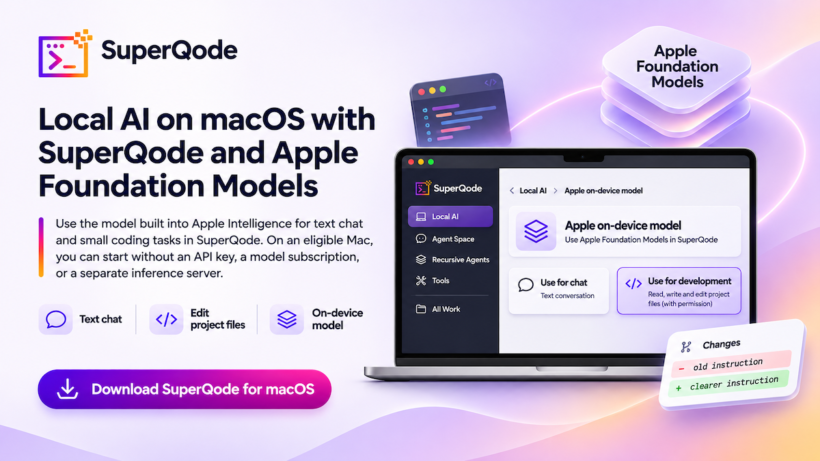
Apple shipped inbuilt foundation models in every single macOS that rarely everyone know. Use the model built into Apple Intelligence for text chat and small coding tasks in SuperQode. On an eligible Mac, you can start without an API key, a model subscription, or a separate inference server.Use the model built into Apple Intelligence for text chat and small coding tasks in SuperQode. On an eligible Mac, you can start without an API key, a model subscription, or a separate inference server.
Apple ships a command called fm with macOS 27. Open Terminal and type the following command to talk to the on-device model.
fm chatYou can ask it to explain a short function, check whether a README is clear, or suggest a better error message. For a quick question, the command is all you need, as shown in Apple’s fm walkthrough.
When you want the model to make a change, SuperQode brings it into the workspace where you open projects, work in threads, and review diffs. You can start with a text conversation, then give the model permission to edit a specific file, as described in the SuperQode macOS beta notes.
Requirements
- Mac. Use a Mac that supports Apple Intelligence. This includes M1 and later M-series Macs, subject to Apple’s language and region requirements. See the Apple Intelligence requirements.
- macOS. The SuperQode beta runs on Apple Silicon from macOS 14. Its Apple on-device integration requires macOS 26 or later. Apple’s
fmcommand ships with macOS 27. See the SuperQode beta notes and Apple’s fm walkthrough. - Model readiness. Turn on Apple Intelligence in System Settings → Apple Intelligence & Siri and allow macOS time to prepare the system model. See Apple’s setup guide.
Get Started
Once the system model is ready, open a small Git project with a README you know well. Find one instruction a new contributor might struggle with, revise it, and review the diff.
1. Start in Terminal
On macOS 27, run this from the project directory:
fm respond "Read this README excerpt. What is one instruction a new contributor might find unclear?

"
fm respond uses the on-device model by default and prints its answer in Terminal. This command reads the first 40 lines and leaves the file untouched. For a conversation with follow-up questions, use fm chat. For repeatable checks, fm respond also supports structured output that a script can turn into a checklist or save as a draft. Apple offers Private Cloud Compute as a separate model choice, as shown in Apple’s fm respond walkthrough.
2. Continue in SuperQode
Open the project in SuperQode 0.4.8 and go to Local AI → Start. You can reach the same view from Local model on the welcome screen. Apple on-device model appears first. When the card says Ready on this Mac, Use Apple model opens Agent Space in Code mode.
For a text conversation, go to Local AI → Advanced → Apple on-device, select Check availability, then choose Use for chat. Paste the paragraph you want to improve and ask for a clearer version that preserves any commands. Chat works with the text you provide and has no project file tools. If you’re on macOS 26, you can start here and paste the README excerpt from step one, as described in the SuperQode local runtime guide.
3. Make the edit
Choose Use for development from the Apple on-device panel. Development mode gives the model permission-controlled access to read, write, and edit project files. Keep permissions on Ask and give it one specific change. If your project is a notes app, for example:
In README.md, add one example showing how to search for a note. Use the command already documented in the file and leave the rest unchanged.Review any approval request, then open Changes to inspect the diff. Check that the example uses the right command and that the rest of the README stayed intact. The Apple on-device route has no shell or network tools, so run any necessary tests yourself. See Apple on-device capabilities in SuperQode.
Watch Demo
Where it fits
Apple’s on-device model is a practical choice for short explanations, documentation edits, and small changes you can verify quickly. Once the model is ready, inference can run offline. If it becomes unavailable, SuperQode reports that without sending your prompt to a cloud model, as described in the SuperQode local runtime guide.
For a task that spans several files or needs shell access, open another thread in the same project and choose a harness and model suited to that work. Local AI → Start also lists Ollama and LM Studio for other local models. Runtime settings, the model library, and comparisons are under Advanced, as described in the SuperQode macOS beta notes.